
STG · Cultural HeritageMonitor
- Projects
- 3.9M+
- Publications
- 50M+
- Organisations
- 400K+
- Data sources
- OpenAIRE · ROR · CORDIS
Heritage MonitorTutorials
Tutorials
Three short user journeys show how to get from a question to an answer. Pick the one that matches what you want to do.
GoalYou want to explore and summarise a project and its works.
-
Step 1
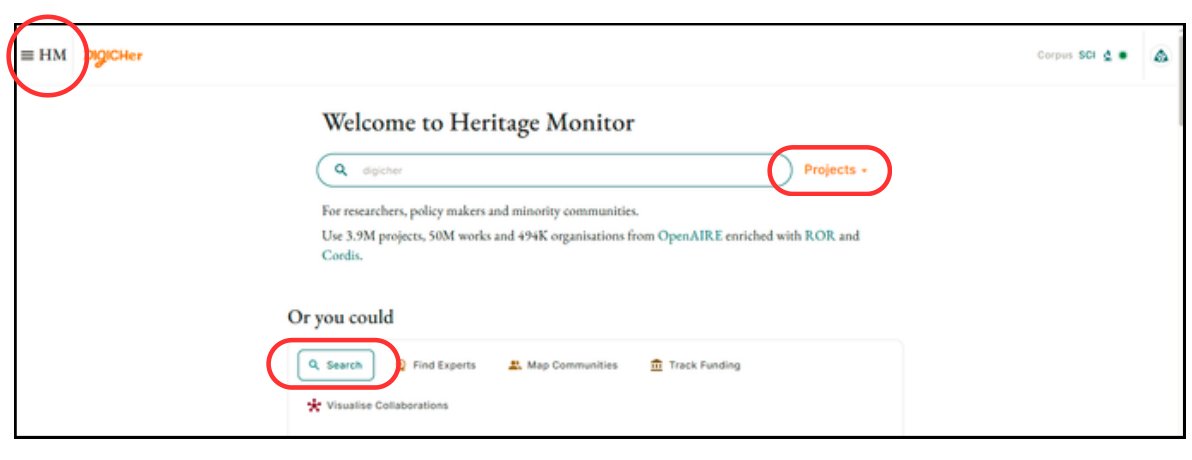
Search for a project
On the landing page, the search in Projects is pre-selected. You can also reach the search through the menu in the upper left corner. Type in keywords or a project name.
-
Step 2
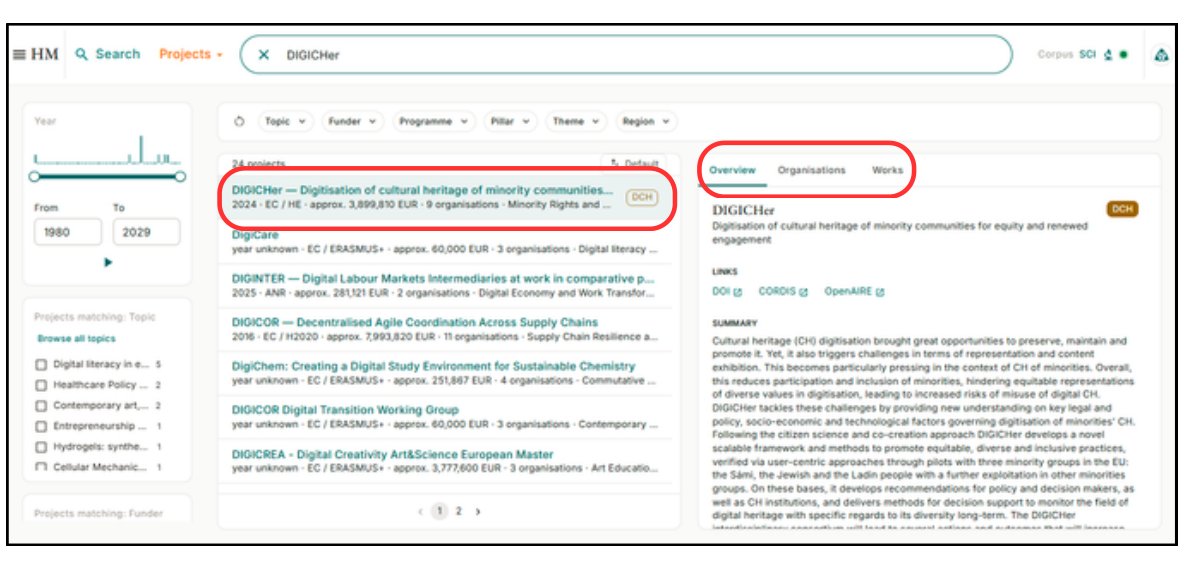
Review the project
Select the project in the list on the left to see more information, such as a brief overview, connected organisations and available works.
-
Step 3
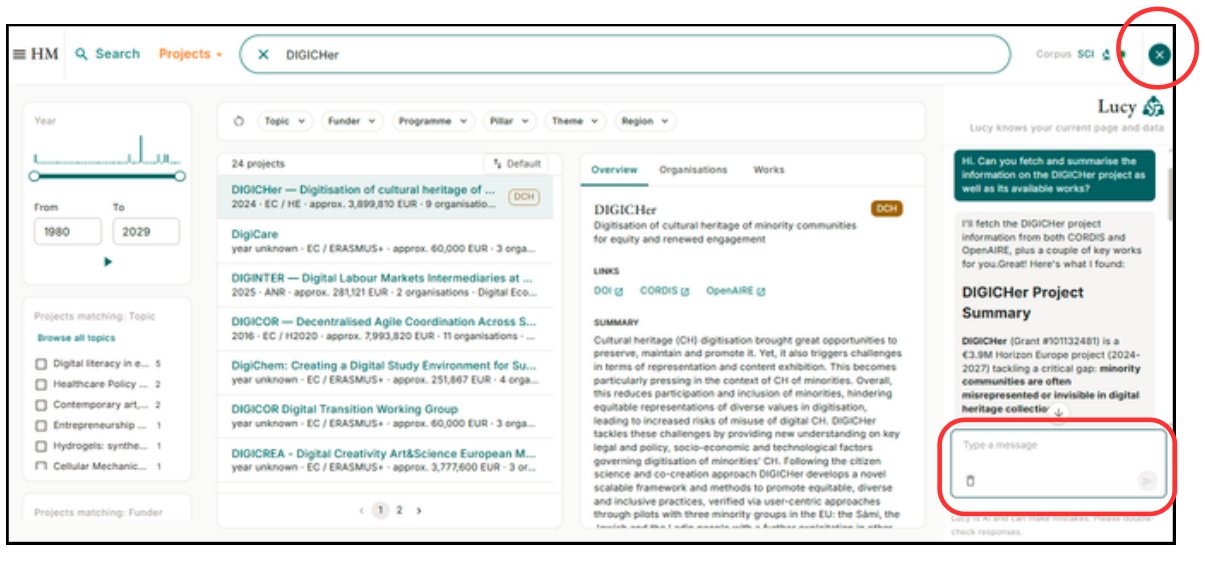
Ask the AI assistant
Open the AI assistant in the upper right corner. It helps you navigate the Heritage Monitor and quickly get an overview. Ask it to fetch and summarise information and data from the tables.
GoalYou want to find a partner for a project based on their previous work.
-
Step 1
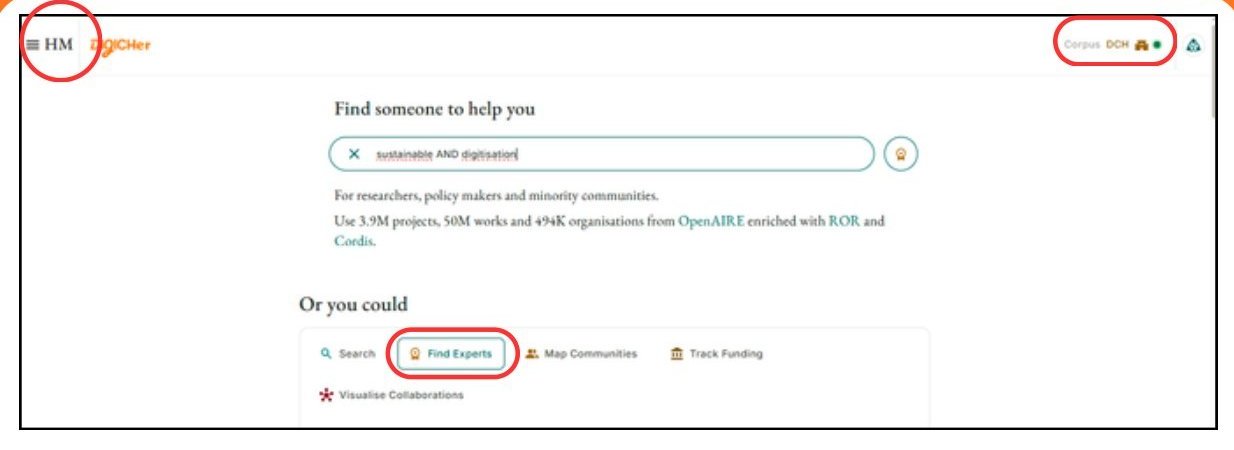
Start Find Experts
On the landing page, select Find Experts. This use case is also available through the menu in the upper left corner. Type in your keywords. Selecting Digital Cultural Heritage (DCH) in the upper right corner limits the search to data connected to this area.
-
Step 2
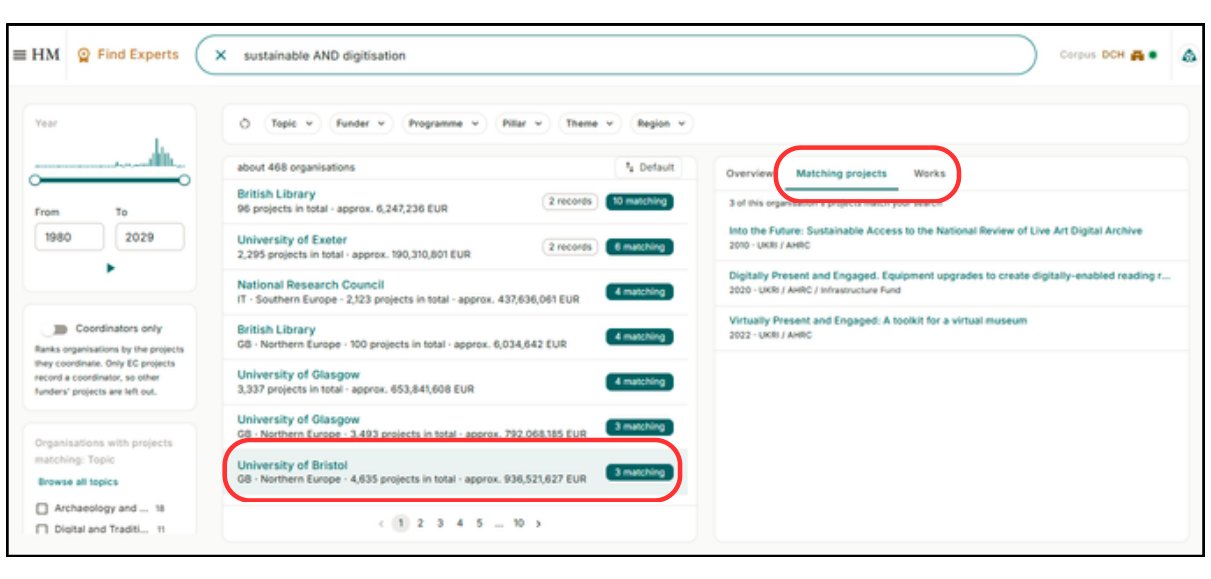
Review organisations
Review organisations as potential partners through their matching projects and works.
-
Step 3
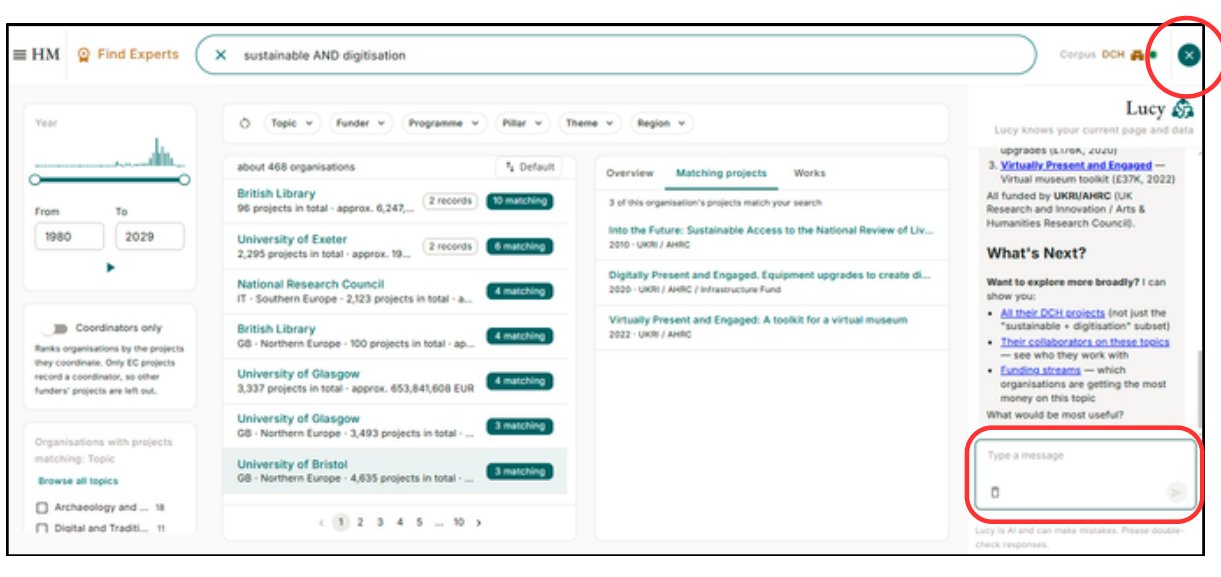
Ask the AI assistant
Open the AI assistant in the upper right corner. It helps you fetch and summarise information and can suggest next actions.
GoalYou want to find out what is being funded on a certain topic.
-
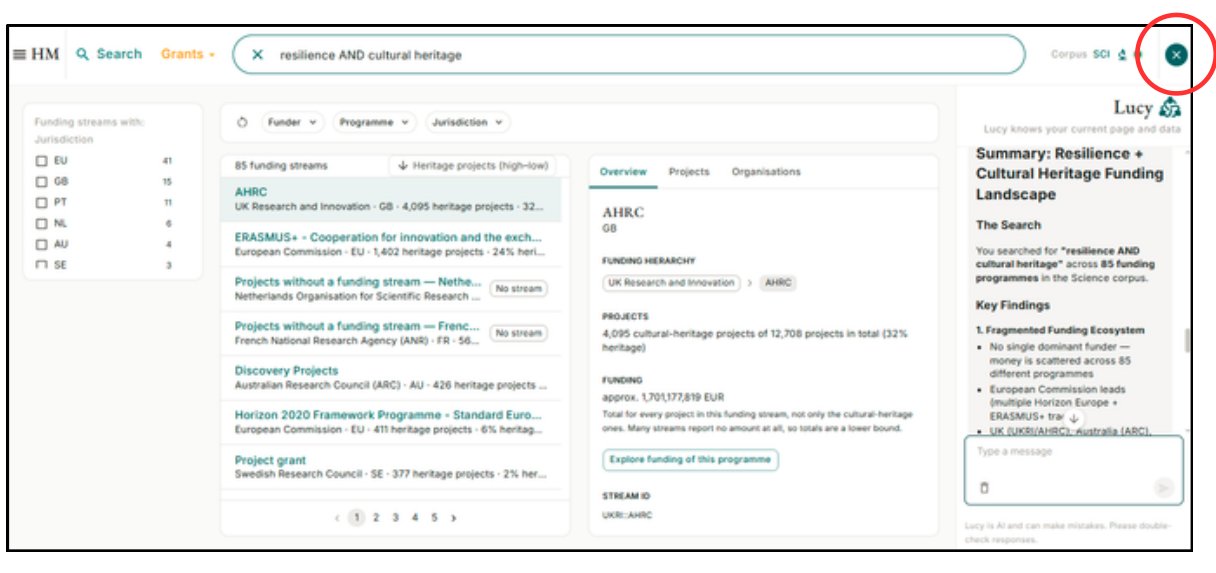
Step 1
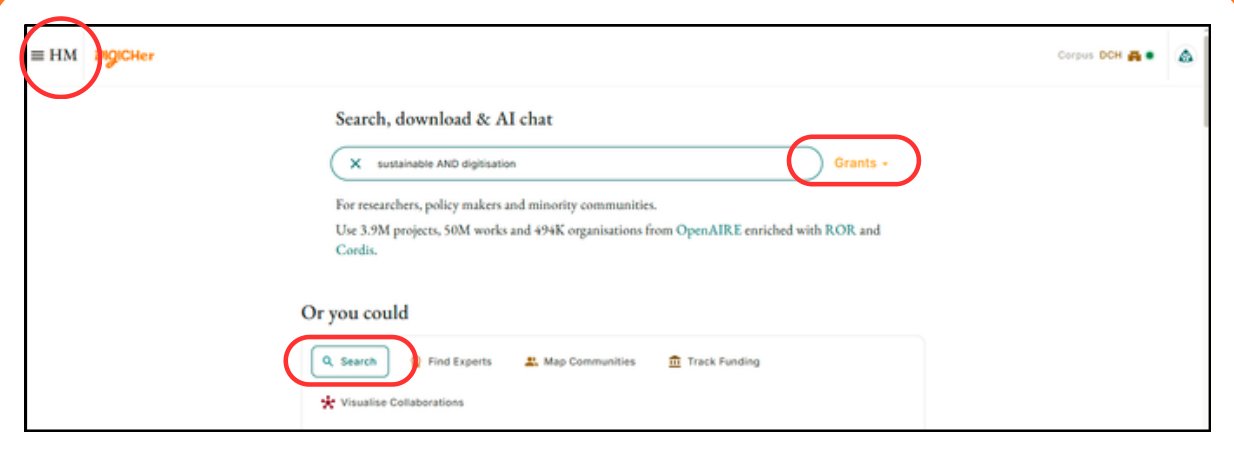
Search grants
On the landing page, select Search and Grants. This use case is also available through the menu in the upper left corner. Type in your keywords.
-
Step 2
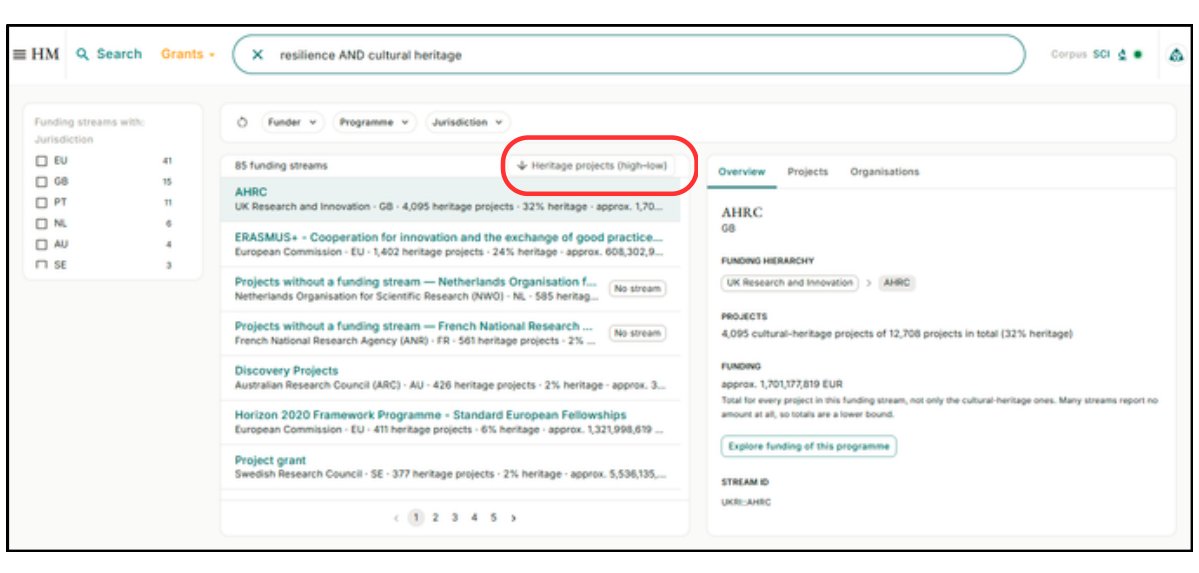
Sort and review
Change how the list is sorted if needed, for example by number of heritage projects. Review the results and their additional information.
-
Step 3
Ask the AI assistant
Open the AI assistant in the upper right corner. It helps you summarise your findings.
Key features
Scope
- Organisations
- Research and cultural heritage actors
- Projects
- Funded research initiatives and collaborations
- Works
- Publications and research outputs
Use cases
- Search
- Keyword-based filtering for projects, works, organisations and grants
- Find Experts
- Identify experts in a field based on their previous projects and works
- Map Communities
- Find projects and works connected to a certain community
- Track Funding
- Find organisations and projects connected to funding programmes, based on keywords
- Visualise Collaborations
- See which organisations have worked together
Additional features
- Corpus
- Switch between Science (SCI) and Digital Cultural Heritage (DCH) to narrow down the data
- AI assistant
- Navigate the Heritage Monitor, fetch and summarise data, and get suggested next steps
Finding your way around
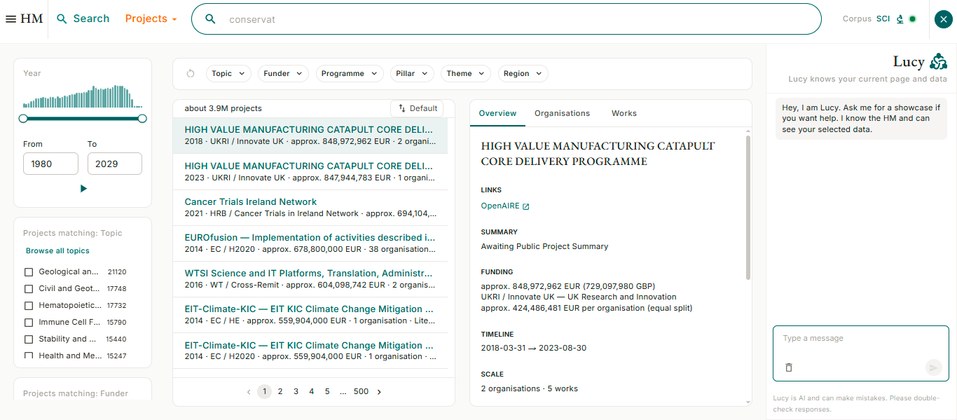 1
2
3
4
- Menu with all use cases
- Corpus switch: Science or Digital Cultural Heritage
- Search results and connected information
- AI assistant
Tutorials based on the Heritage Monitor user guide by the DigiCHER project, funded by the European Union.